Set Prompts
Magenta Realtime 2 has 6 prompt slots. Each prompt is weighted and averaged according to user-specified weights before being passed as input to the model.
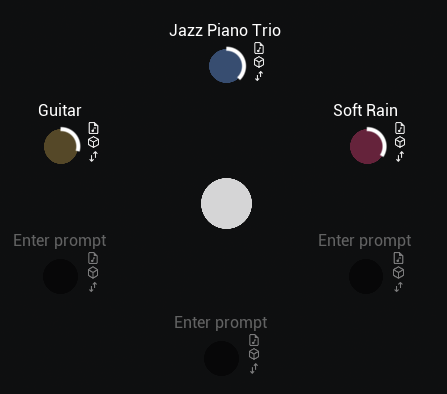
You can input prompts into each slot using the following 3 methods:
- Text
- Audio
- Embedding
Text
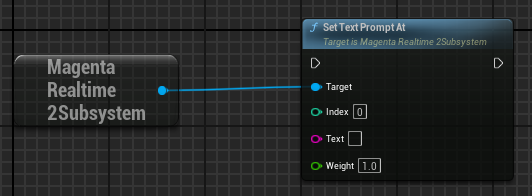
Execute the set_text_prompt_at function.
- Index: The prompt slot index (0–5).
- Text: The prompt string (e.g., "Jazz Piano Trio").
- Weight: The weight of the prompt.
Audio
You can use 10-second mono audio sampled at 16,000 Hz as a prompt.
Using Sound Wave
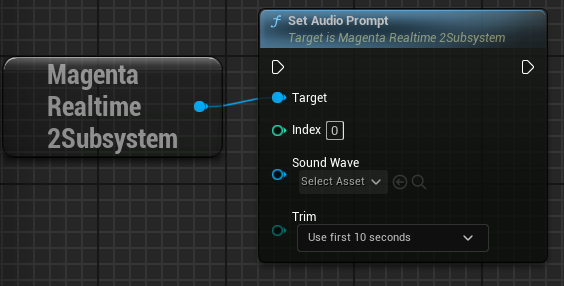
Execute the set_audio_prompt function.
- Index: The prompt slot index (0–5).
- Sound Wave: A stereo or mono audio. It will be downmixed internally to 16 kHz mono.
- Trim: Whether to use the first 10 seconds or the last 10 seconds of the Sound Wave.
Use asset by right-clicking in the Editor
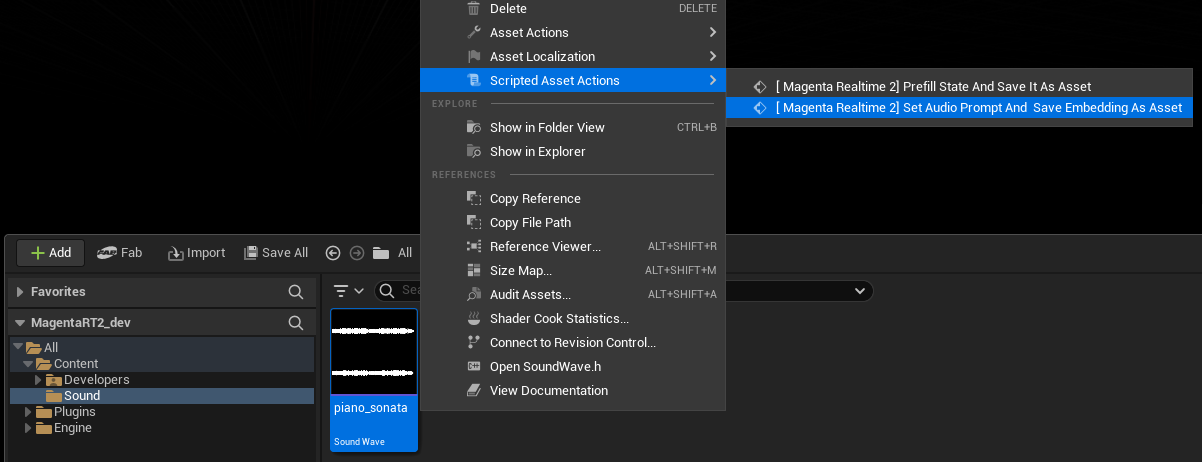
Right-click a SoundWave asset in the Unreal Editor Content Browser and select "Scripted Asset Actions > [ Magenta Realtime 2] Set Audio Prompt And Save Embedding As Asset". This executes set_audio_prompt for slot 0 using the specified asset. Furthermore, after execution, the audio embedding is saved to Content > MagentaRealtime2 > SavedEmbeddings.
Using WAV File
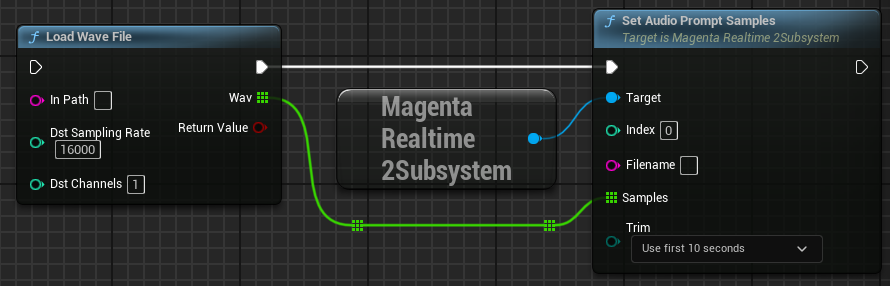
Execute set_audio_prompt_samples by passing 16 kHz mono waveform data loaded via functions such as "Load Wave File".
- Index: The prompt slot index (0–5).
- Filename: Used as the return value of
get_cached_text. It is recommended to specify a filename. - Samples: 16 kHz mono waveform data.
- Trim: Whether to use the first 10 seconds or the last 10 seconds of Samples.
Embeddings
Audio prompts have a limitation: processing audio through an encoder takes time. To avoid this, you can save the "embedding" (an array of 768 float values) obtained after processing the audio through the encoder, and input it directly in place of the prompt.
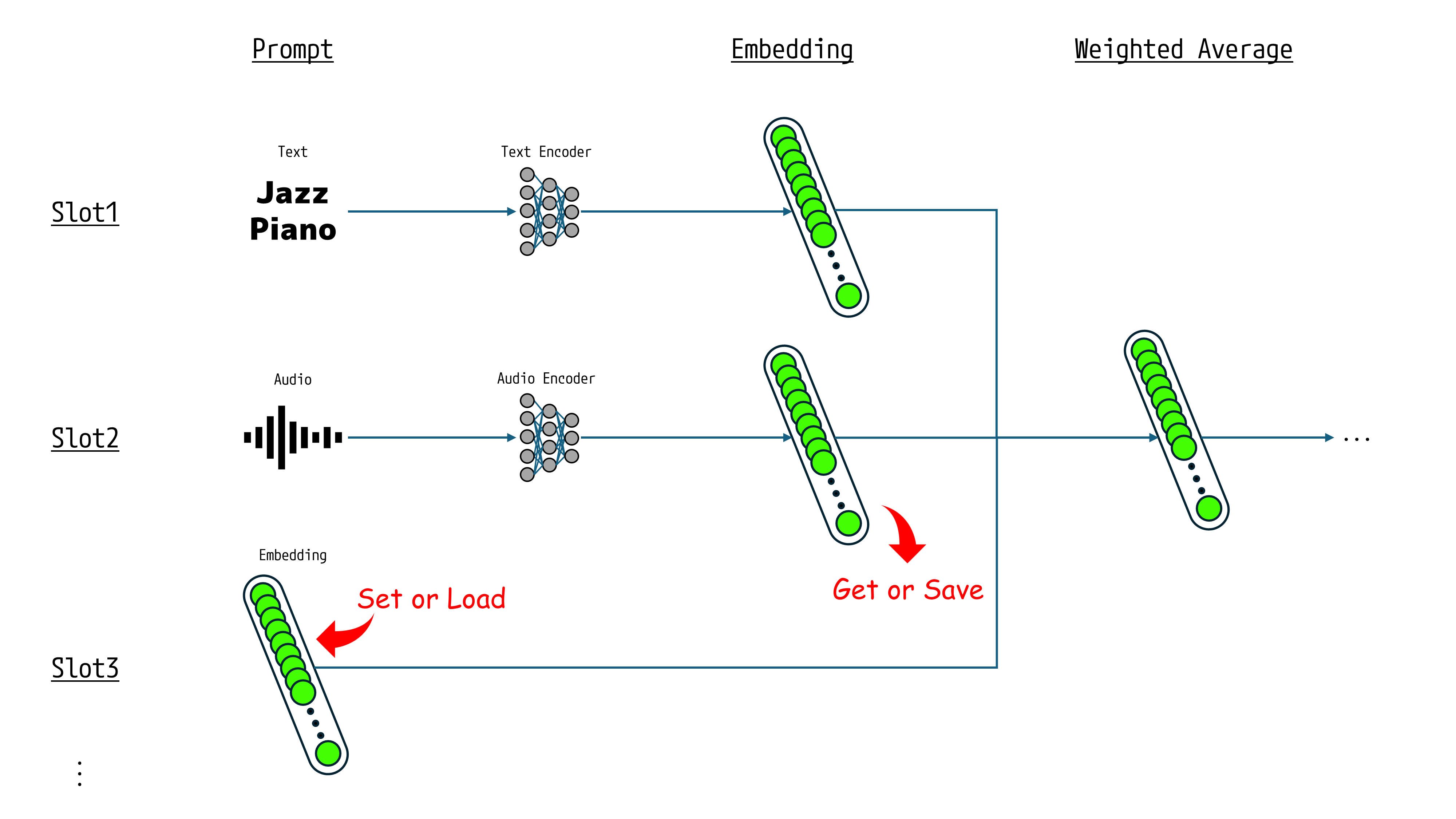
Using Raw Values
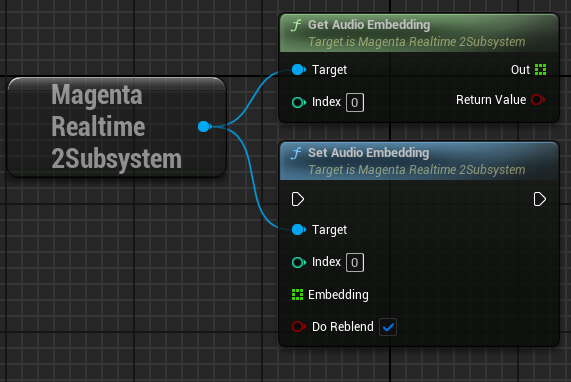
Use the get_audio_embedding function to retrieve the raw embedding values.
- Index: The slot index (0–5) to retrieve the embedding from. An audio prompt must be set in the specified slot beforehand.
Use the set_audio_embedding function to set the raw embedding values.
- Index: The slot index (0–5) to set the embedding into.
- Embedding: The embedding values retrieved via
get_audio_embedding. - Do Reblend: Whether to immediately recalculate the weighted average and reflect the result in audio generation after setting the embedding. Typically True. If you set weights separately via
set_weight, setting this to False avoids redundant recalculations.
Using Assets
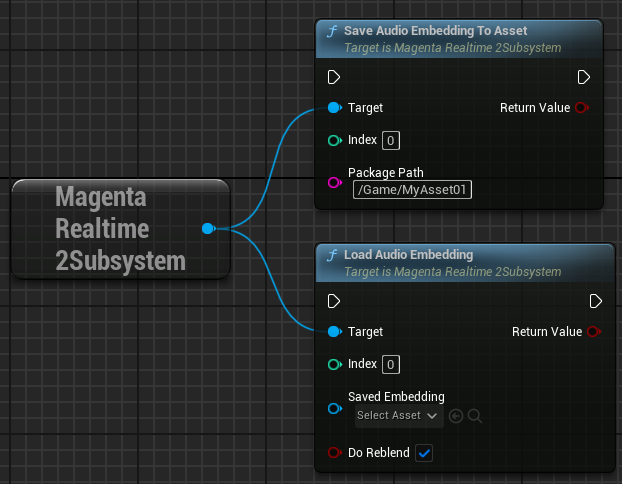
Use the save_audio_embedding_to_asset function to save the embedding as an asset.
- Index: The slot index (0–5) to retrieve the embedding from. An audio prompt must be set in the specified slot beforehand.
- PackagePath: The destination asset path.
Use the load_audio_embedding function to load the embedding from an asset.
- Index: The slot index (0–5) to set the embedding into.
- Saved Embedding: The asset to load.
- Do Reblend: Whether to immediately recalculate the weighted average and reflect the result in audio generation.
Use asset by right-clicking in the Editor
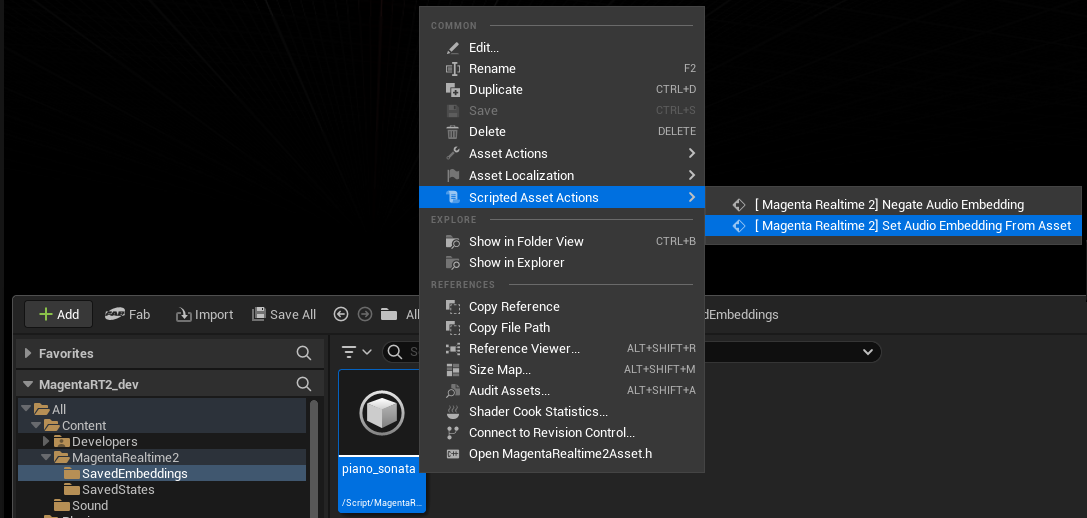
Right-click a MagentaRealtime2SavedEmbedding asset in the Unreal Editor Content Browser and select "Scripted Asset Actions > [ Magenta Realtime 2] Set Audio Embedding From Asset". This executes load_audio_embedding for slot 0 using the specified asset.
Using SaveGame
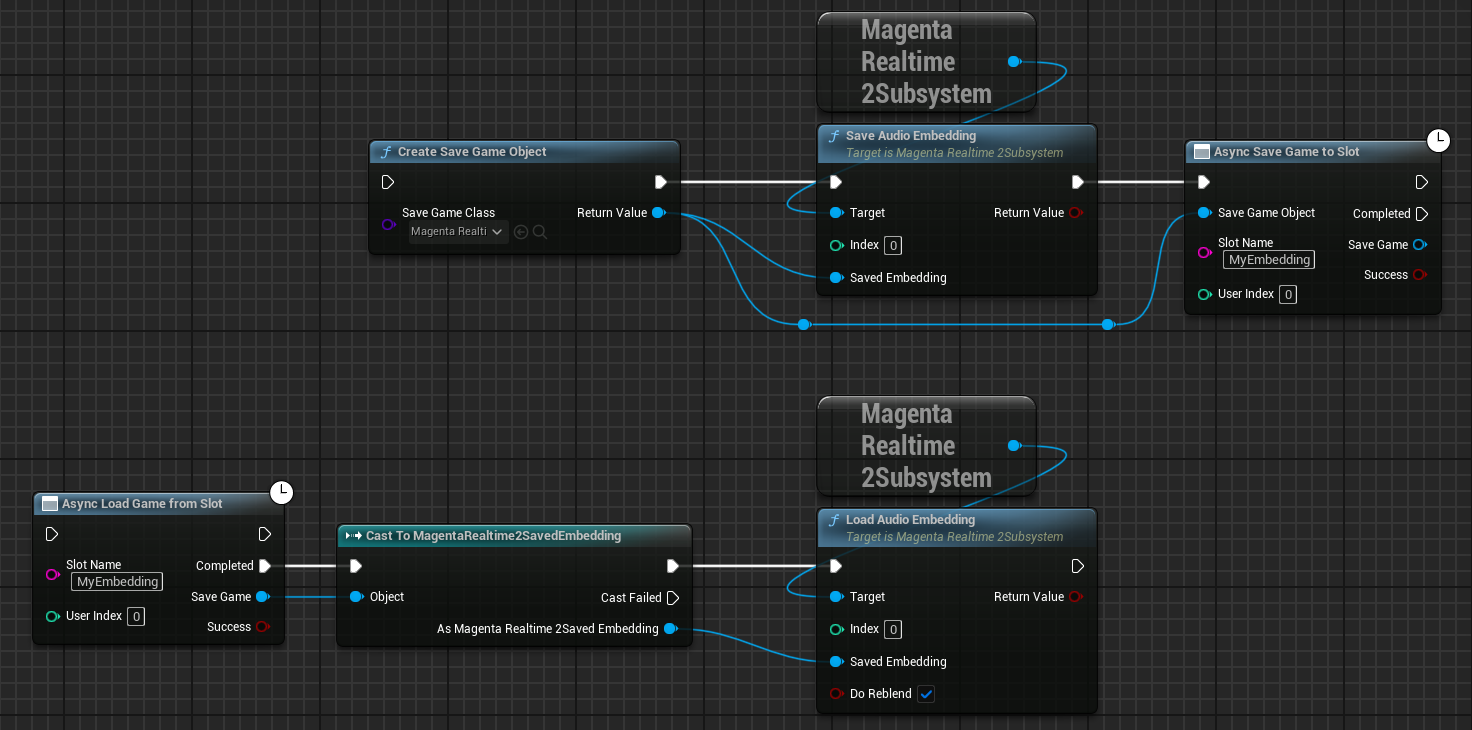
Create a MagentaRealtime2SavedEmbedding object using CreateSaveGameObject, write embedding data into it using save_audio_embedding, and then save it using SaveGameToSlot like a standard SaveGame object.
When loading, cast the loaded SaveGame from LoadGameFromSlot to MagentaRealtime2SavedEmbedding, and pass it to load_audio_embedding to apply the embedding.