Model State
Magenta Realtime 2 generates audio for the next frame based on (1) various inputs such as prompts and (2) the generation results of the last 42 frames (1 frame = 40ms).
Information about the audio generation results from the last 42 frames is stored internally as a KV cache. In Magenta Realtime 2, this cache is referred to as the model state.
Saving & Loading State
By saving and loading the model state, you can resume audio generation from a specific point in time mid-generation.
Saving State to an Asset
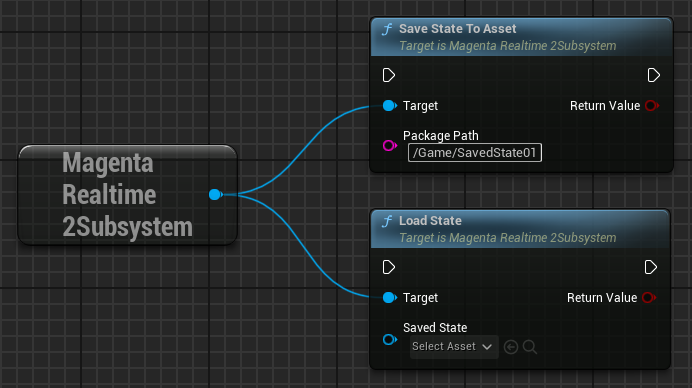
Executing the save_state_to_asset function saves the current model state as a MagentaRealtime2SavedState asset at the specified path.
Loading the state with the load_state function from a specified MagentaRealtime2SavedState asset allows you to resume generation from that saved state.
Use asset by right-clicking in the Editor
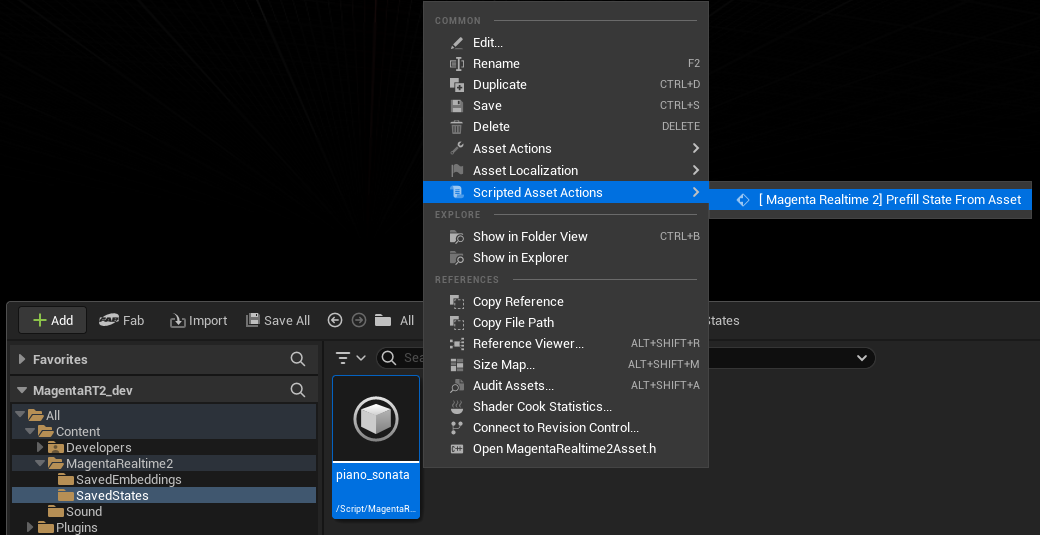
Right-clicking a MagentaRealtime2SavedState asset in the Unreal Editor Content Browser and selecting "Scripted Asset Actions > [ Magenta Realtime 2] Prefill State From Asset" executes the load_state function with the specified asset.
Saving State to SaveGame
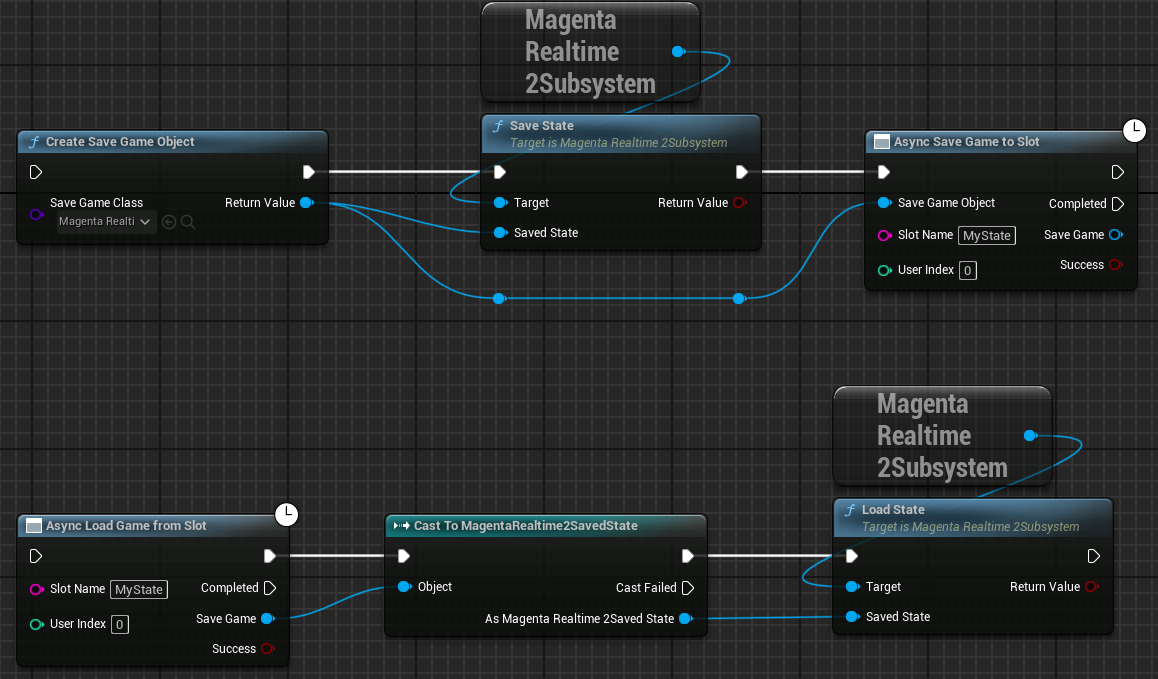
Create a MagentaRealtime2SavedState object with CreateSaveGameObject, write the state into it using save_state, and save it using SaveGameToSlot just like a standard SaveGame.
When loading, cast the SaveGame loaded with LoadGameFromSlot to MagentaRealtime2SavedState, and pass it to load_state to restore the state.
Setting State from Audio
By creating a model state for specified audio as if it had just finished generating that audio, you can easily guide the model to generate similar audio.
Automatic Loading & Unloading of Prefill Model
- To set the state from audio, the model for processing audio (Prefill model) must be loaded into memory. Executing
prefill_state_with_assetorprefill_statewhen the Prefill model is not yet loaded automatically loads the model internally. -
If "Auto Unload Prefill Model" in "Project Settings > Plugins > Magenta Realtime 2" is set to "True (default value)", the Prefill model is automatically unloaded upon completion of
prefill_state_with_assetorprefill_state. It defaults to True to prevent memory pressure.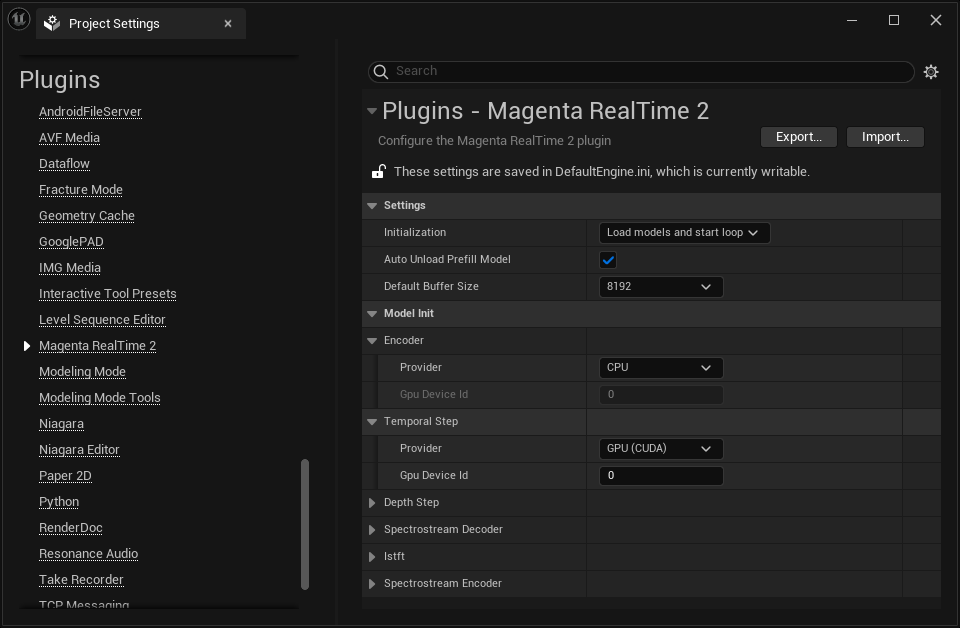
-
To manually load the Prefill model, execute
load_prefill_model. To manually unload it, executeunload_prefill_model.
When Audio Files Are Too Long
- Depending on GPU memory capacity, processing may fail if the audio file is too long. In that case, please trim the audio file to around 20 seconds before processing.
Setting from SoundWave
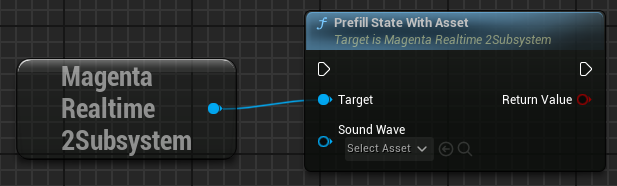
Executing prefill_state_with_asset overwrites the model state using audio from the specified SoundWave file.
- Sound Wave: Stereo or mono audio. Internally converted to 48kHz stereo audio. A length of around 20 seconds is sufficient to overwrite the model state.
Use asset by right-clicking in the Editor
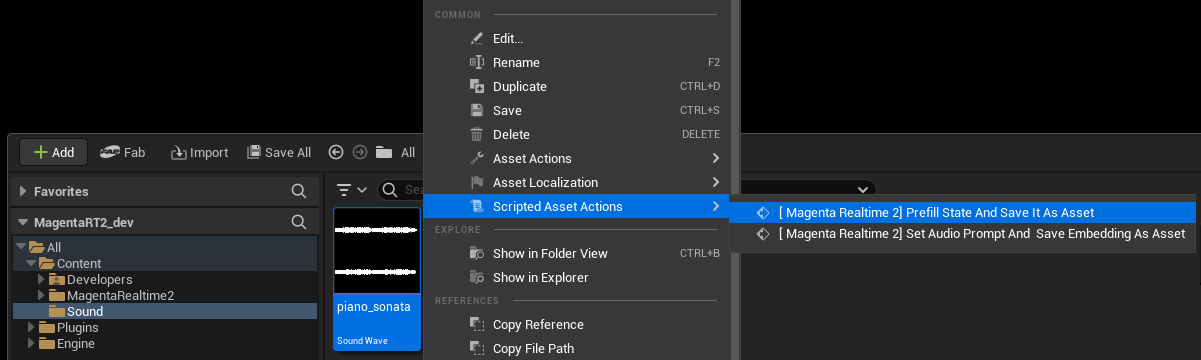
Right-clicking a SoundWave asset in the Unreal Editor Content Browser and selecting "Scripted Asset Actions > [ Magenta Realtime 2] Prefill State And Save It As Asset" executes prefill_state_with_asset for the specified asset. Additionally, Save State to Asset is executed after processing, saving a MagentaRealtime2SavedState asset under Content > MagentaRealtime2 > SavedStates.
Setting from WAV File
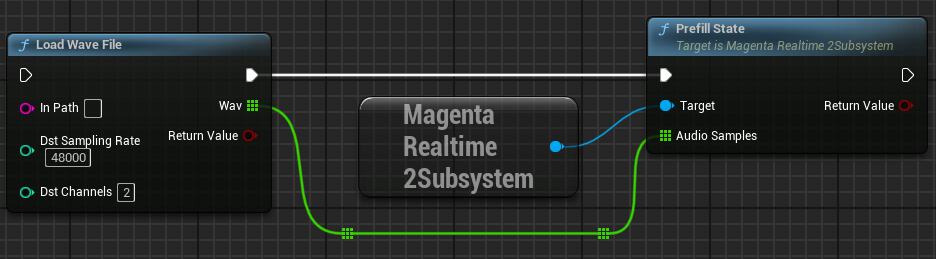
Executing prefill_state with 48kHz stereo waveform data loaded via "Load Wave File" or similar functions overwrites the model state with the specified WAV file.
- Audio Samples: 48kHz stereo waveform data. A length of around 20 seconds is sufficient to overwrite the model state.
Setting State to Silence
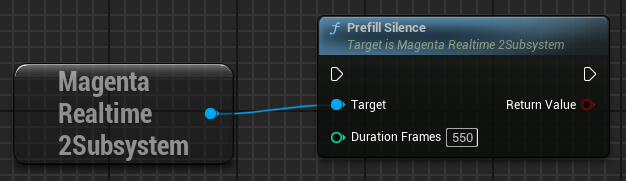
Executing prefill_silence sets the state to immediately following the generation of silence for the frame count specified by DurationFrames. This allows audio generation to start from a completely silent state.
Resetting State to Factory Default
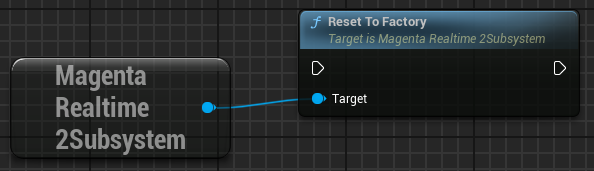
Discards the current cache and restores the initial state when the model was loaded. Note that this is different from a silent state.
Resetting State
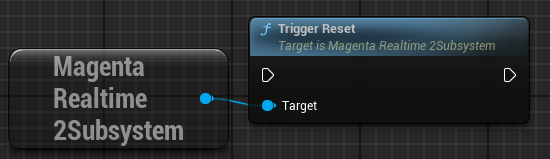
Discards the current state and reverts to whichever of the following states was executed last:
- State loaded via
load_state - State configured from audio via
prefill_state, etc. - Silent state configured via
prefill_silence - Initial state configured via
reset_to_factory
If none of the above have been executed yet, it reverts to the factory initial state just like reset_to_factory.